Plans and billing
Plan for the platform subscription, sending volume and AI work separately. Each workspace has its own billing and credit balance; admins manage the plan and payments. This guide explains where to check allowances, usage and the cost of scaling your work.
Find your plan and balance
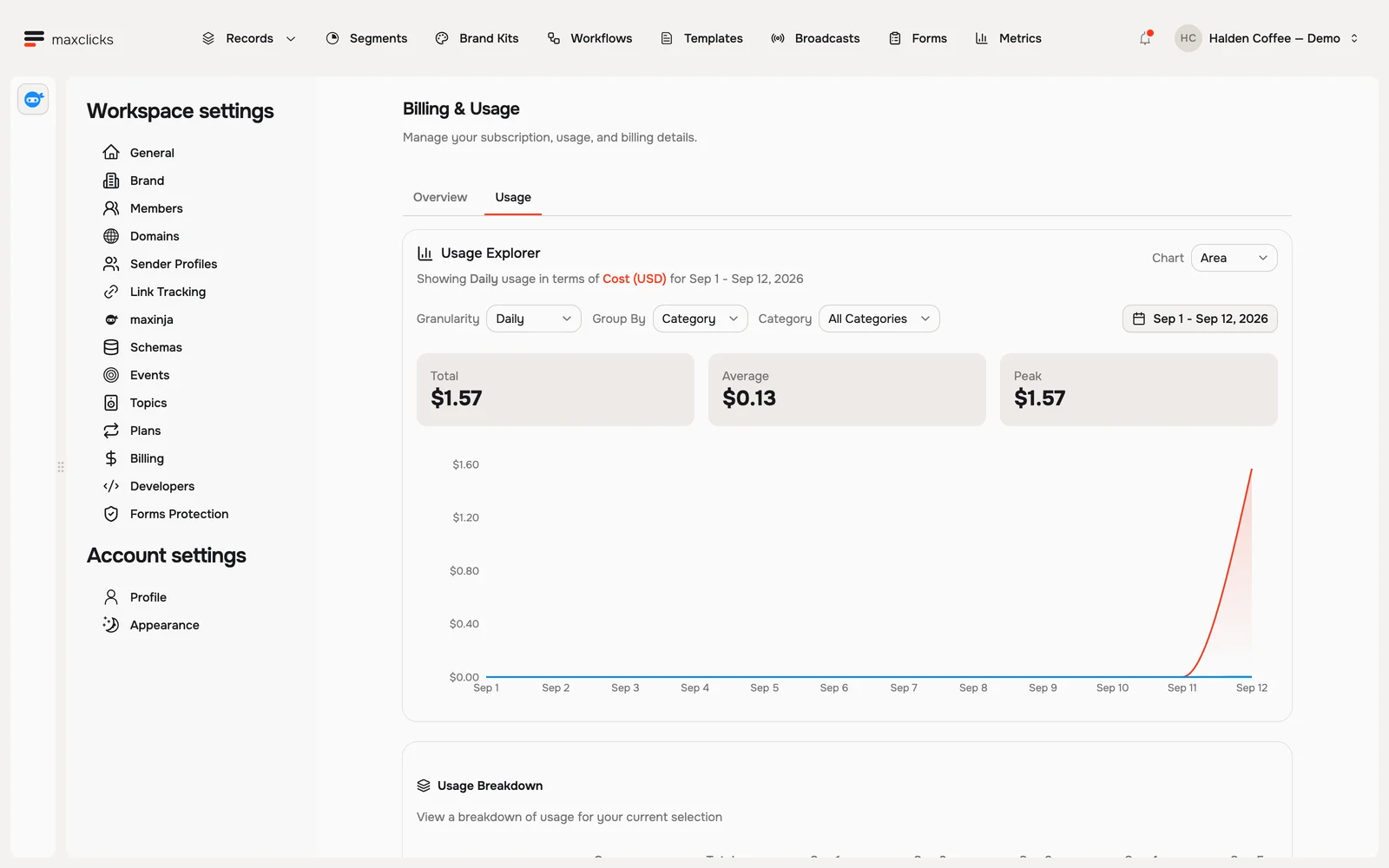
Open the space menu in the top bar and choose Billing, or go through Settings. You land on Billing & Usage, which has two tabs:
- Overview holds your plan, your credit balance, your payment methods and your invoices.
- Usage breaks down what has been spent, on what, and by whom. It is a Pro feature, so on Free the tab shows a locked card rather than any figures.
What you get on each plan
Every space is on one of two plans. Explore plans on the Billing page puts them side by side with the current figures.
Free needs no card. You get 100 emails a month, unlimited contacts and records, imports, workflows, the editor and maxinja. Your emails and forms carry a small maxclicks badge in the footer, and invoices and the usage breakdown are not available.
Pro is a monthly or yearly subscription, called Premium inside the app. You get a much larger monthly email allowance, credits you can top up whenever you like, invoices, the full usage breakdown and no badge. It is billed per space, plus a seat for each teammate who can edit. Contacts and objects together come with an included allowance, and past it they are billed in packs, with a part-used pack charged in full.
On Free, new sends are refused when you reach the monthly email limit. The next allowance reset permits new sends again; it does not repair every previously failed operation. The reset follows your own monthly cycle from when the space was created, not the calendar month. You are never charged for reaching the limit.
What credits pay for
Credits cover everything that is not the subscription: generating an email with maxinja, personalizing a send, running a workflow, sending beyond your included emails. One credit is one unit of your billing currency, which is US dollars by default, euros across the EU, EEA and Switzerland, and pounds in the United Kingdom.
The Free credit gift arrives once, when your first sending domain is verified; it is not a monthly refill. Eligible new Free spaces can receive funded setup assistance from maxinja before that gift. Ordinary AI previews and generation still need available workspace credits.
Top up, and keep it topped up
Only a Pro space with an active subscription can buy credits.
On the Overview tab, Add Credits charges your card for the amount you pick. Enable Auto Reload keeps you from running dry: you set an amount and a balance to trigger at, and maxclicks refills for you when you drop past it. Come back to the same card to change either later.
You get warnings in the app as the balance runs low.
Upgrade, change or cancel
To move from Free to Pro, click Upgrade to Premium and choose monthly or yearly billing. Enter your card details on the same page.
To change or cancel later, come back to Billing. Cancelling takes effect at the end of the period you already paid for, and the credits you bought carry over rather than being lost.
See where it went
The Usage tab is the answer to "what did that cost". It breaks spending down by member, by what it was spent on, and by category, so a surprising number always has an explanation. Invoices sit on the Overview tab, where you can open each one or download it as a PDF.
Ask maxinja: "How do credits work on my plan?" It explains which actions spend credits on the plan you are on. Review recorded spend in Billing after the work runs; the Usage view groups it by period, category and member rather than exposing every workflow step.
The email composer's Estimate separates generation, possible corrections, pilot and continuing reviews, send and campaign costs where applicable. Check the audience and model assumptions. Unknown cost does not mean zero, and an uncalibrated duration is not a completion promise. Stopping a campaign does not erase usage already incurred. Actual spend is recorded after work runs.
Plan for work already running
Background workflows and broadcasts use the workspace balance. A teammate's unused seat allowance is not a pool available to all automation. Set auto reload and review the wallet against the expected campaign and journey volume.
If progress stops, inspect its reason. Insufficient credits can park durable work until funding returns; a terminal failure, exhausted email allowance or a suppressed recipient is different. Avoid creating replacement campaigns or triggers while the original work is waiting. Use broadcast stop or workflow pause when you intend to stop future execution.
Annual seats and record packs are prepaid: additions are prorated through the shared renewal date and reductions apply at renewal. Monthly quantities move with usage. Use the billing reference before forecasting the effect of a team or data-size change.
Next
Start with Set up your space, or connect your domain, which is what opens sending and, on Free, grants your credits.