Import a contact list
Bring your existing customer list into the model you have defined in maxclicks. Match the CSV headers to your fields, choose consent defaults carefully, and inspect the import results before using the records in an audience.
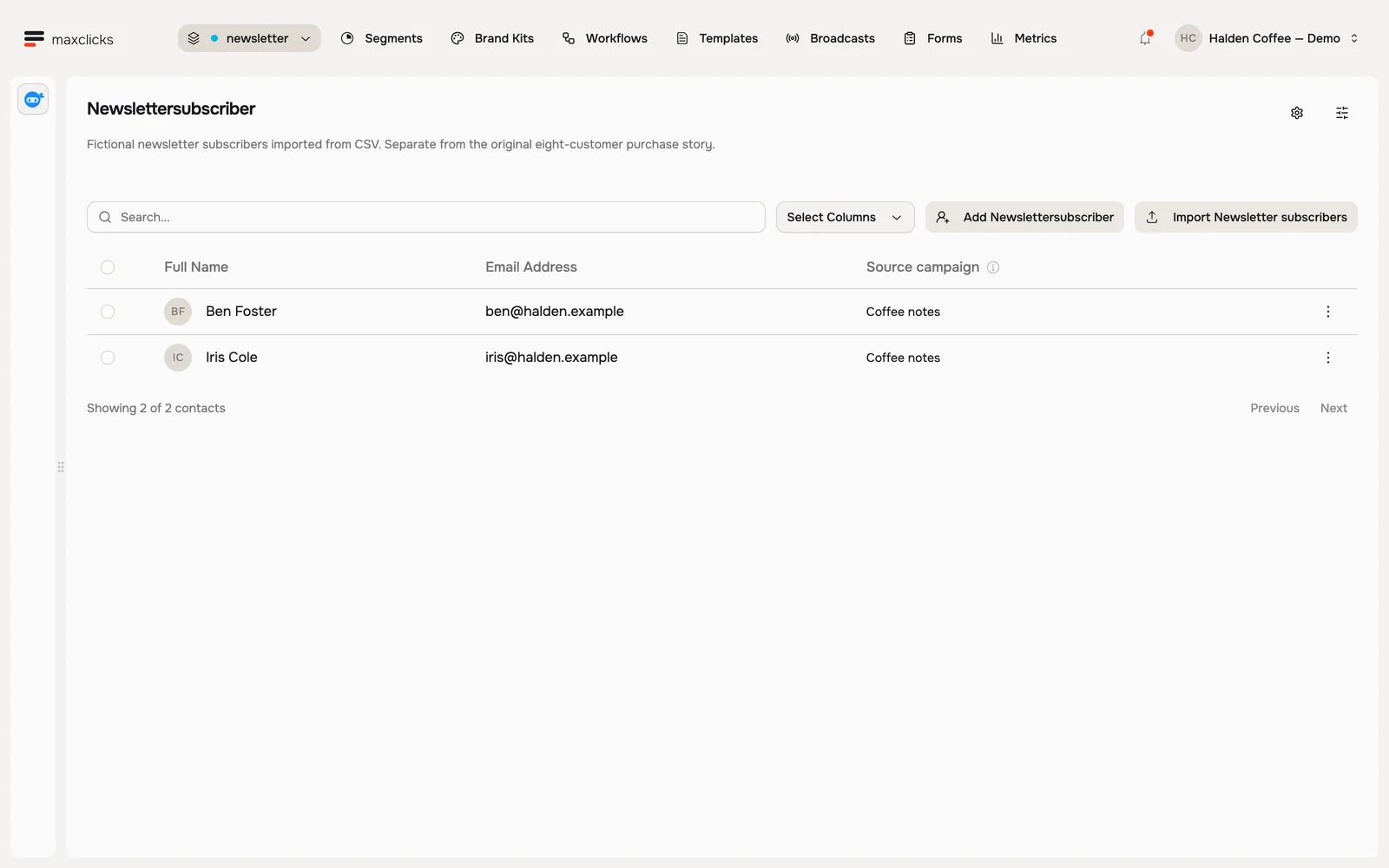
Run the import
Open the importer
In the top navigation, open Records and pick the contact type this list belongs to. On that list, click the import button beside Add: it carries the type's plural name, for example Import Customers. That takes you to the type's Import tab, under Schemas in Settings, and opens the CSV dialog straight away. If you come to that tab on your own, click Start import to open the same dialog.
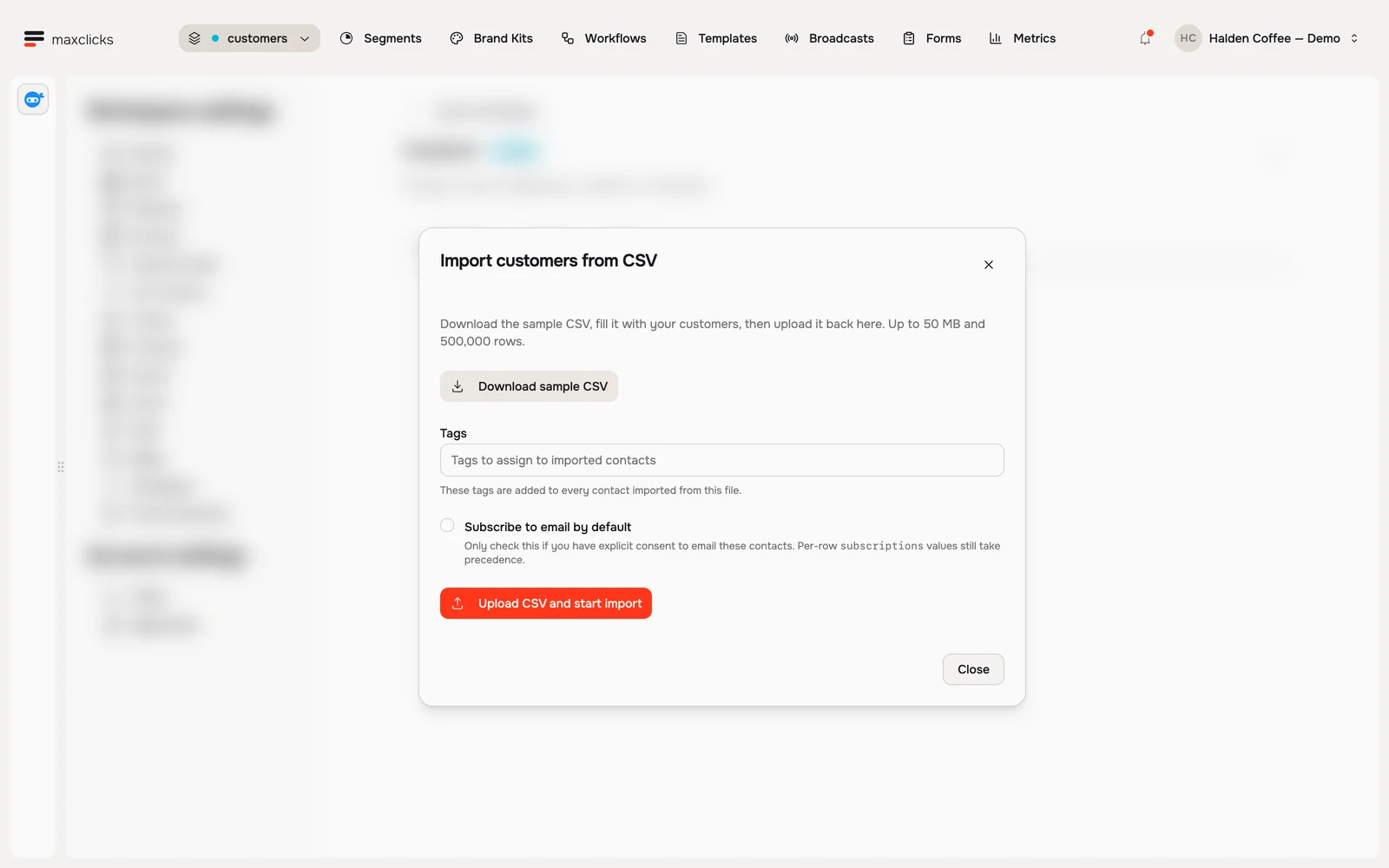
Halden demo · Download the schema sample, choose tags, and set the consent default before upload. Walkthrough steps
Open the schema’s Import tab and Start import. Inspect sample CSV download, optional tags, email subscription defaults and the upload control. This walkthrough stops before uploading; the separate import-result image shows the actual completed local import.
Fill in the sample CSV
Click Download sample CSV and paste your data underneath its header row. That header row is exactly the set of columns this contact type accepts, which is the whole point of starting from it.
The standard dialog has no column-matching screen. Headers are writable field keys, such as
email,firstName,lastName,phoneand your custom keys. Whitespace is trimmed, but names are case sensitive:Emailis notemail. Unknown and read-only fields are omitted. The import table shows row outcomes, not a per-column warning, so inspect the saved profiles afterward. Use semicolons for multi-value cells, such asvip;newsletter.Upload it
Add any tags you want applied to everyone in this file, then click Upload CSV and start import and choose your file. After upload, maxclicks creates an import job. The dialog shows upload progress separately from starting the job; leaving the page after the job is created does not stop it.
A file can be up to 50 MB and 500,000 rows. One row over the row limit fails the whole file rather than the extra rows, so split a larger list before you upload it.
Prepare values for the standard importer
| Cell | How it is read |
|---|---|
| Blank | Omitted; an existing value is left unchanged rather than cleared |
| Tags, subscriptions or a multi-select field | Semicolon-separated values, trimmed individually |
| Boolean | true, yes, 1 and on mean true, case insensitively; other nonempty text becomes false |
| Number or decimal | Numeric text is converted before field validation; check representative amounts after import |
| Text and date fields | Trimmed text, then the field's normalizer validates it |
Use explicit true and false for booleans. A misspelling such as treu becomes false rather than failing the row. Do not assume every conversion problem will appear in the failure log.
On newly created records, missing writable fields use the schema's creation policy: empty, default, required or AI autofill. Matching an existing record does not rerun those policies. You cannot import evaluated relationships or computed attributes; their values come from their own definitions.
For a first run, include a new contact, an existing contact you intend to update and a row with an optional blank. Inspect their saved values before loading the remainder.
Use a mapped import during onboarding
When your CSV uses different names or needs a transformation, maxinja's onboarding flow can inspect the file and propose a mapping into a contact or object schema. Explain the intended identifiers, date formats, units and consent columns.
The plan shows a readable mapping and a dry run over sampled rows, including example mapped inputs and any sample failures. Nothing is imported at that stage. Review and refine the mapping, then approve starting that prepared import. This is a separate path from the standard dialog's exact-key format.
Sampling is bounded; a successful dry run does not validate every row in a large file. The background importer freezes its source, schema and mapping for the run. Changing a field definition or replacing the source file is not a way to repair the in-progress job; correct the input and prepare another import when needed.
Only subscribe the people who agreed
Subscribe to email by default is off, and it is the file's fallback rather than an override. Tick it only for people who have actually agreed to hear from you.
Two limits decide what it actually does:
- A row's own
subscriptionscell wins. The checkbox applies only where that cell is blank, so a mixed list can be ticked and still land correctly row by row. - It reaches only the contacts this import creates. Someone already in maxclicks keeps the consent they had, unless their row carries a
subscriptionscell.
For people you have not asked yet, collect consent properly with a signup form rather than assuming it here.
Watch the run, then fix what failed
Every import stays listed on the same Import tab, with its status and how many rows have been processed: Pending, Running, Succeeded, Partial, Failed or Canceled. A run that is still pending or running can be stopped from its row, which leaves it Canceled with the rows it already imported in place.
The run first reads and seals its input, then processes checkpointed batches. An over-limit file or a source-level error can fail the run; an invalid row can fail independently while valid rows proceed.
| Outcome | How to interpret it |
|---|---|
| Succeeded | No processed rows failed; still verify important field mappings on saved records |
| Partial | Some records were written and some rows failed |
| Failed | Read the run's reason and counters: it may be a source/preparation problem or a run with no successful rows |
| Canceled | Further processing was stopped; previously committed records remain |
Open the failed-row count to inspect sample row numbers, identifiers and reasons, or use Download failure log from the row menu. The UI retains up to 20 failure samples and the downloaded log contains up to 10,000 detailed failures, with an omitted-count indication for additional rows. Correct the affected rows in a fresh file rather than assuming the log always contains the whole original file.
Deleting an import entry removes its history, not the contacts it already wrote. A running import must be canceled first, and deletion can still wait for an active worker or require reconciliation of unresolved AI enrichment. Read that error instead of starting repeated paid copies of the job.
What happens to people you already have
When an import matches an existing contact within the selected schema, it updates that record. Matching depends on the identifiers you supply; review conflicts and failed rows before using the list.
Supply the maxclicks id to identify a particular existing record, or use a consistent source userId. Without a user ID, email is used; without either, phone is used. This is a priority rule within the selected schema, not a search across all identities until one happens to match. A supplied platform ID that is not found is a failed row. Identifier conflicts are also failed rows rather than automatic profile merges.
A repeat import can update existing values. Give objects an externalId for the same reason. Default tags are added to the row's supplied tags, and explicit record values can replace existing state. Check identities, tags and preferences on a few matched records before treating an import as safe to repeat.
Next
Now that your contacts are in, build an audience to group the right people, then send a broadcast.