Create a segment
Turn a campaign hypothesis into an audience you can inspect. Describe the customer behavior, time window and exclusions that matter; maxinja generates the segment condition and shows the matching contacts. A saved segment evaluates the current data when used.
There is no rule builder behind this. Describing the group is the only way to define one, so every segment costs a maxinja request in credits. Generating or refining the condition uses your space’s available credits. Eligible new Free spaces can receive funded setup assistance from maxinja; that does not make every AI feature free before domain verification.
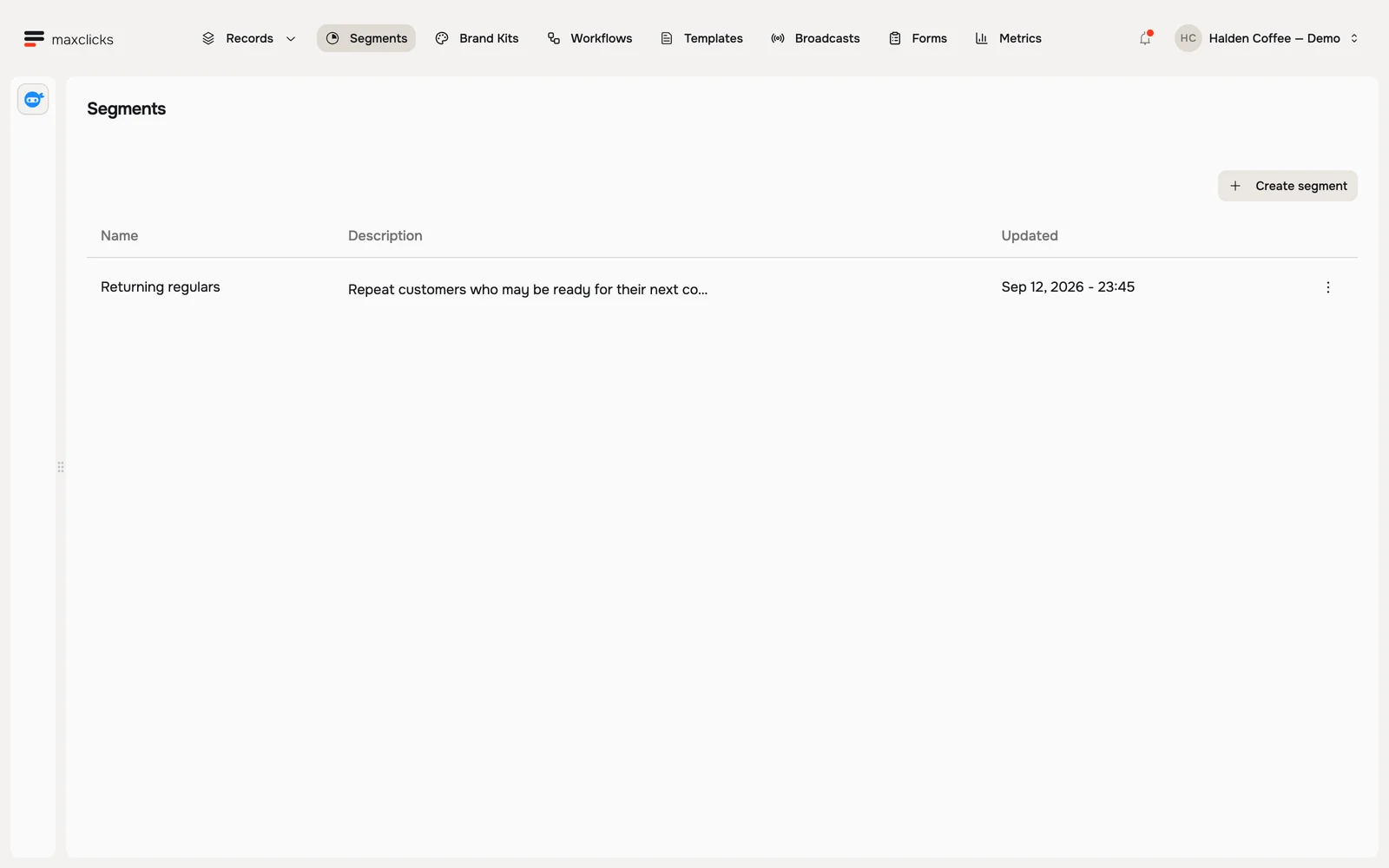
Start a new segment
In the top navigation bar, open Segments and click Create segment. Give it a clear name you will recognize later, like "Returning regulars".
Describe who belongs in it
Type who you want to include, in plain English, for example "customers with at least two recorded orders whose latest order was at least 14 days ago". Select the contact schema first if the workspace has several. Specify the actual order/customer join, the status that counts, and the timestamp used for “latest.” Generate the condition; maxinja uses the available data model to propose the rule.
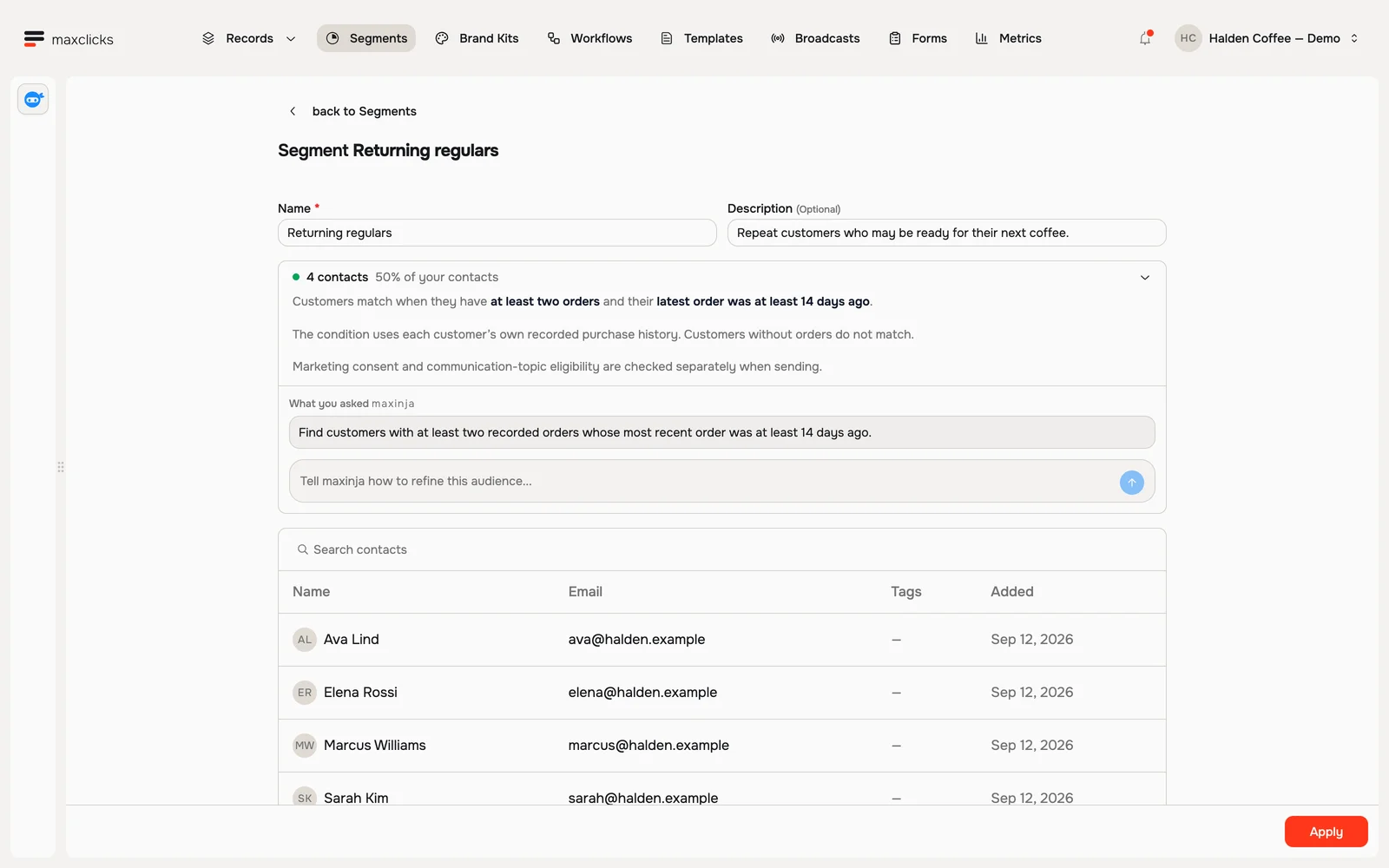
Halden demo · Four returning customers match the purchase-history condition. Sending consent is checked separately. Walkthrough steps
Review Returning regulars: at least two orders and no order in the last 14 days. Inspect the four matching customers, then return to the requirement and refinement box. This walkthrough inspects an existing saved segment.
Check the group maxinja built
maxinja shows a short summary of who it included, plus a count and a list of the matching contacts. Read the summary and inspect the people to check what it matches. In the Loopwell example below, Maya and Amara have no projects of their own; a teammate’s project does not count.
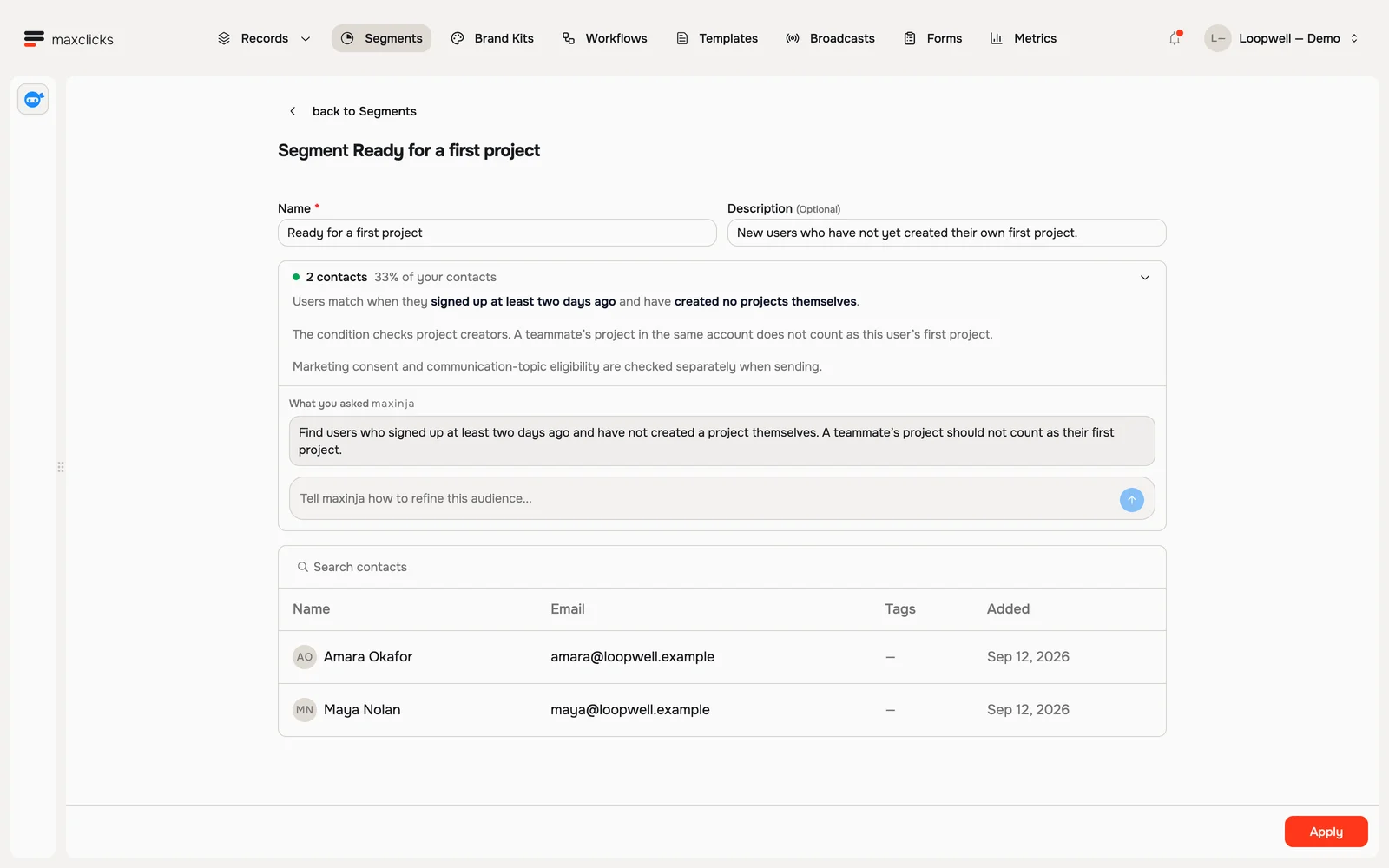
Loopwell demo · Two users have no projects of their own. Sending consent is checked separately. Walkthrough steps
Review the first-project audience and its two matching users. The condition uses signup age and projects created by that individual. Return to the saved requirement and refinement box. Counts refresh from the actual demo records.
Refine it in your own words
Add another sentence to narrow it, like "only include people in the United States". maxinja updates the group and the count refreshes. Generate each refinement and recheck the results before saving. An instruction still sitting in the prompt is not itself a saved rule.
Before saving, test a known exclusion as well as an inclusion. For a computed activity field, decide whether an empty value means “no observed activity” or “not yet calculated,” and check its published freshness. Refreshing this preview does not recalculate the source history.
Reuse your segment
Once saved, a segment can be selected by the supported audience and workflow controls. Pick it when you send a broadcast so the email only goes to that group, or use it inside a workflow. You can also build a new segment on top of an existing one, for example "people in my Active customers segment who also live in Europe".
Understand changes after saving
Membership is evaluated when used and can change as records change. A broadcast later seals the audience for that send; it does not continually enroll later matches. A segment count also precedes consent, suppression and destination checks.
Search narrows the preview, not the saved rule. Counts refresh when a new first page loads and are reused during pagination. If a generated definition depends on this segment, editing or deleting the source segment can be blocked; create a separate audience when a changed meaning should not affect those dependents.
Next
With your segment ready, send a broadcast to it.