Take a tour of the app
Follow the work from customer data to audience, message, journey and results. This tour shows where each part lives inside your space, and where maxinja works alongside your team.
Walkthrough steps
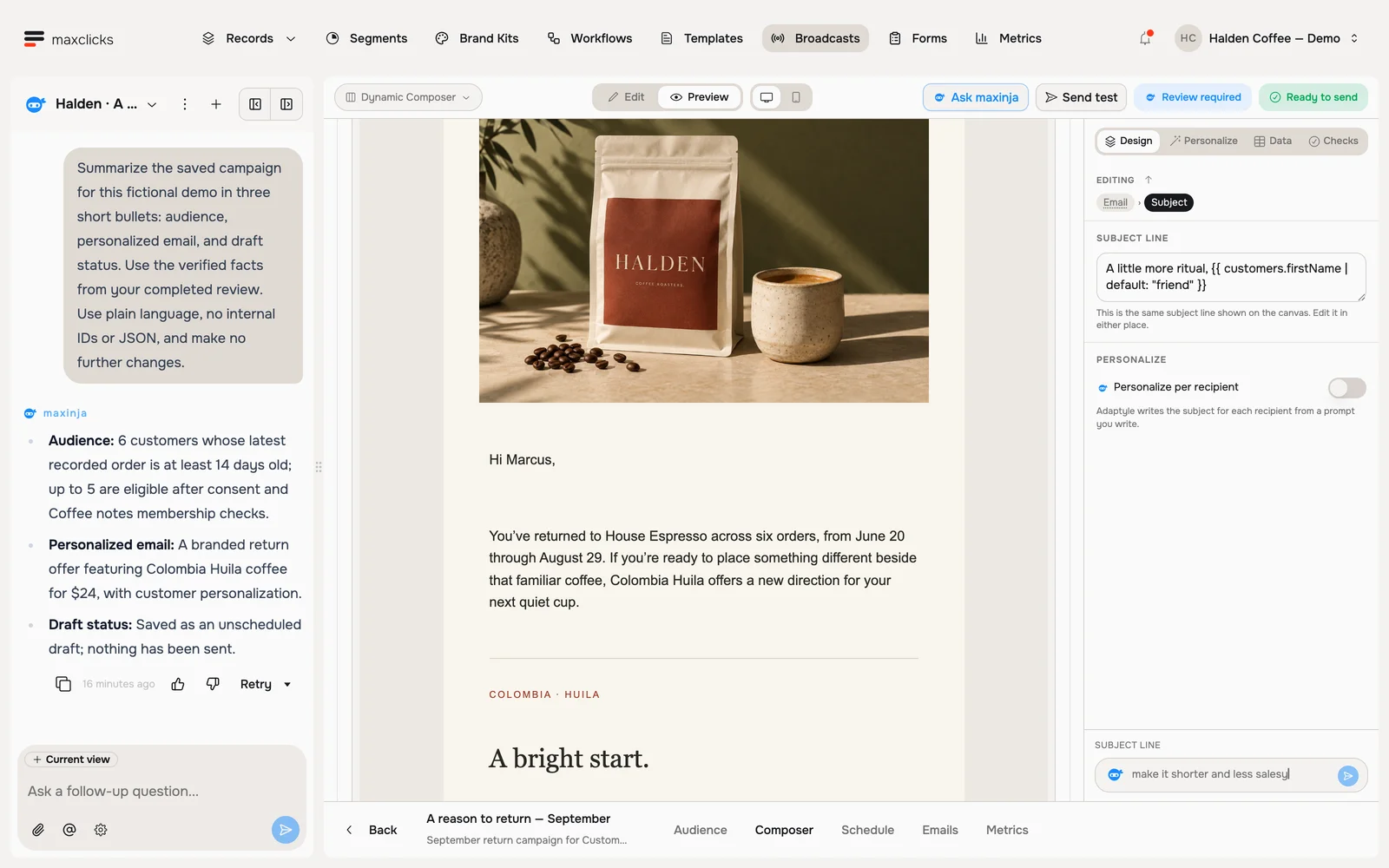
Read maxinja’s completed review of a real Halden campaign draft. Inspect the actual audience count, available draft controls and saved Marcus preview. The agent corrected the audience and sender and left the campaign unscheduled. This is a walkthrough of the completed review, not a recording of live campaign creation; no email is sent.
Meet the layout
Every screen has the same shape. The top bar takes you between areas. maxinja, your assistant, sits on the left and you can talk to it at any time. The rest of the screen is where you view and work on your data.
Records
This is your people and your things. Open Records in the top bar and pick a type to see everyone in your space, search them, add them one by one, or import a list. Each contact holds details like name, email, and anything else you track.
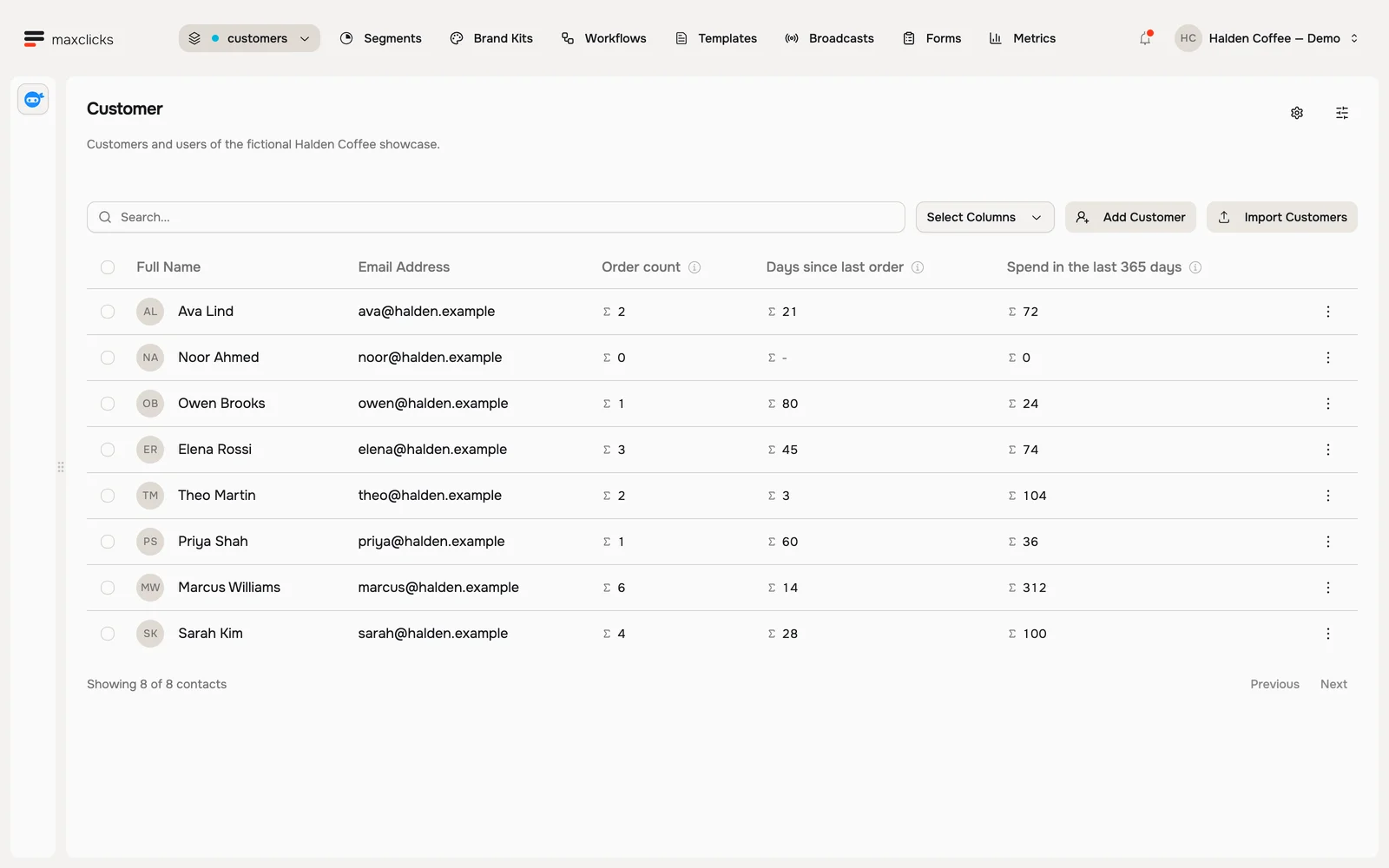
Halden demo · Order counts, recency and spend evaluated from each customer’s purchase records. Walkthrough steps
Inspect the eight fictional Halden customers and their computed order fields. Open Sarah’s order-count explanation, wait for the actual query to return four, then open her contact profile and preferences. No record is edited.
Segments
A segment is a named group of contacts, like "customers who bought last month". Open Segments to build these groups by describing who you want in plain words. You use them to target emails.
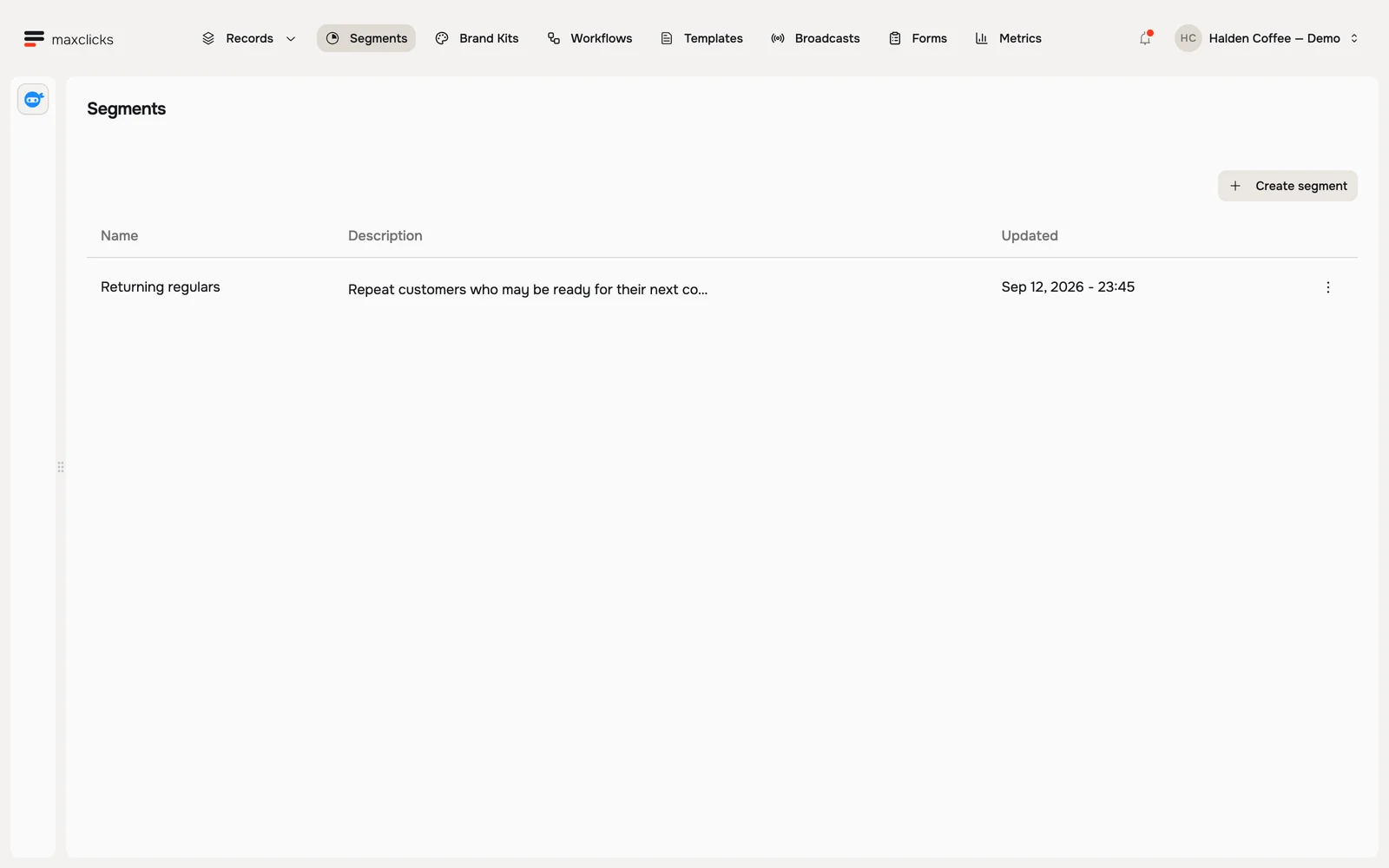
Halden demo · Returning regulars is a saved, reusable segment. Broadcasts and Templates
These are how you send email. A Broadcast is a one-time email to a group, like a newsletter. A Template is a saved email you reuse, like an order confirmation. Both use the same visual editor.
Workflows
A workflow is an automation that runs on its own, like a welcome email that goes out when someone signs up. Open Workflows to build these as a flow of steps on a canvas. maxinja builds one from a description.
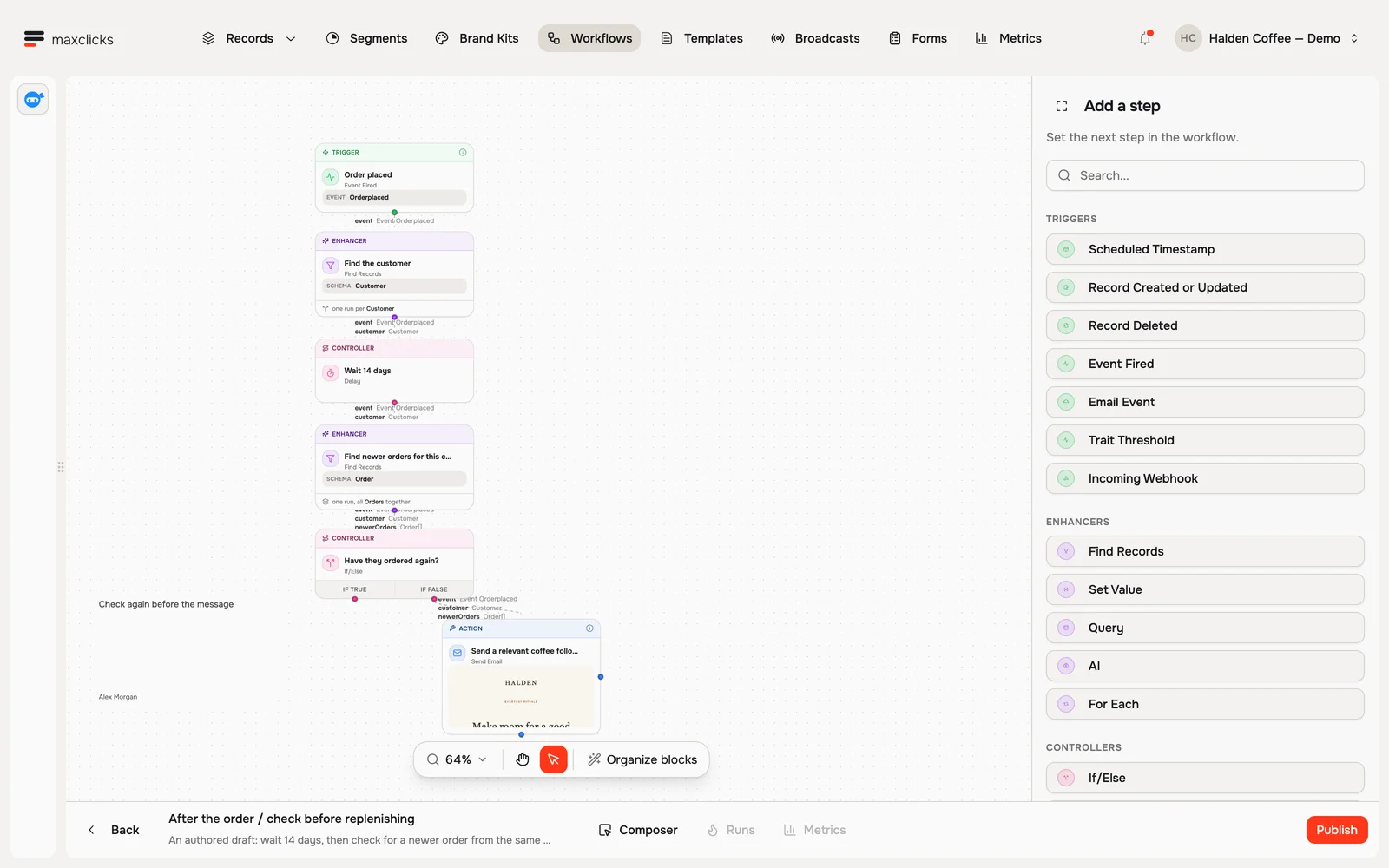
Halden demo · Draft workflow: wait 14 days, check for another order, then decide whether to follow up. Walkthrough steps
Inspect the draft post-purchase workflow. Open its Orderplaced event trigger, 14-day delay, compiled condition checking newer orders, and configured email step. The true branch ends the follow-up; the false branch continues. This draft is not published by the tour.
Forms
Open Forms to build sign-up forms you can add to your website. New sign-ups land in your records automatically.
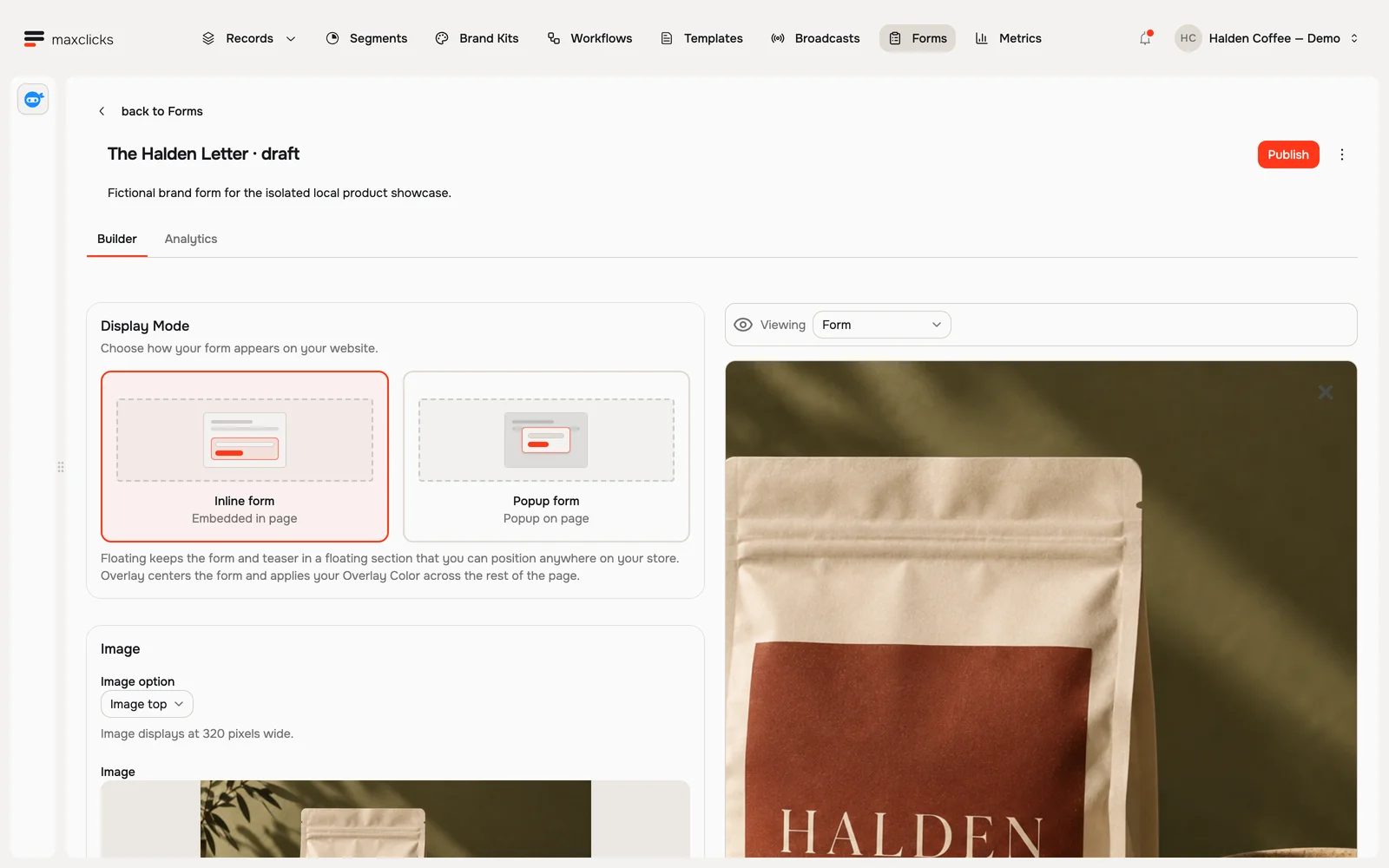
Halden demo · Draft form with inline and popup display options. Metrics
Open Metrics for how your email is doing: delivery, opens, clicks, and your top performing sends.
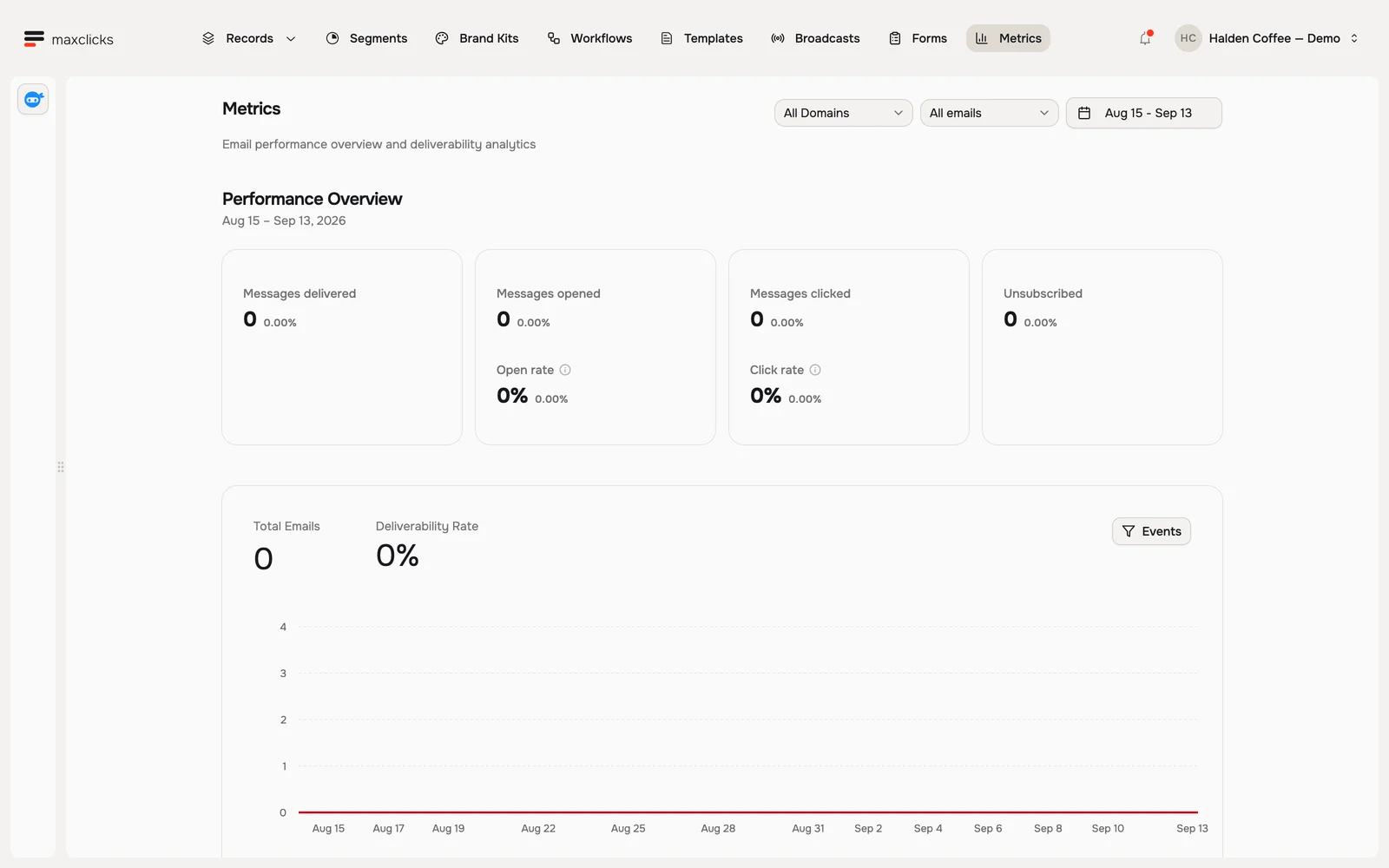
Halden demo · Metrics before any email delivery. The displayed zero counts are the actual local state. Brand Kits
Open Brand Kits for the colors, fonts, images, and social links your emails use, so everything you send looks like you. See Set up your brand.
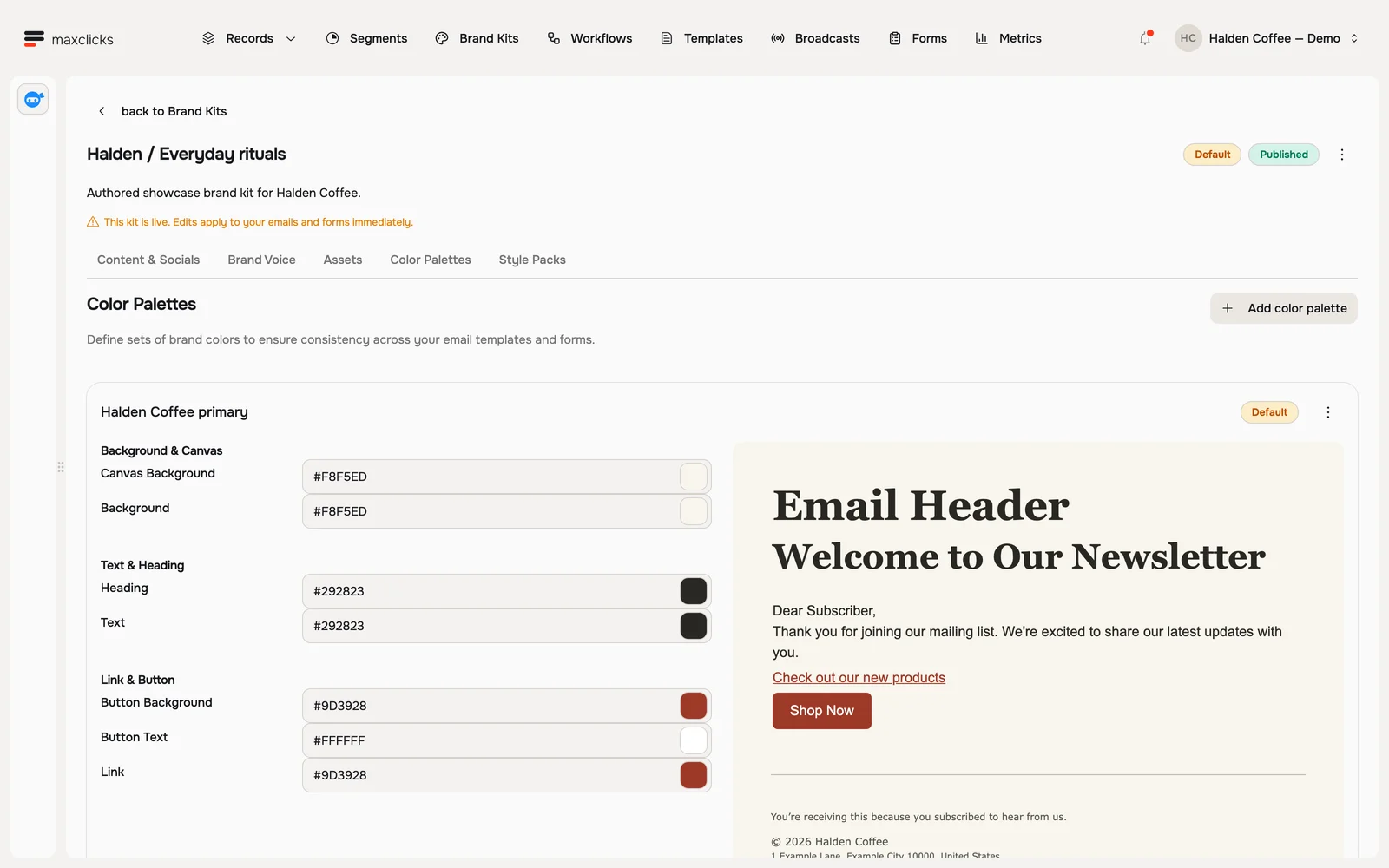
Halden demo · Color settings and their brand preview, side by side. Settings and switching spaces
The space menu in the top bar takes you to Settings, and to Members and Billing if you are an admin. Settings is where domains, sender profiles, schemas, and your brand details live.
If you run more than one business, the space menu is also where you switch between spaces. What you can open here depends on your role.
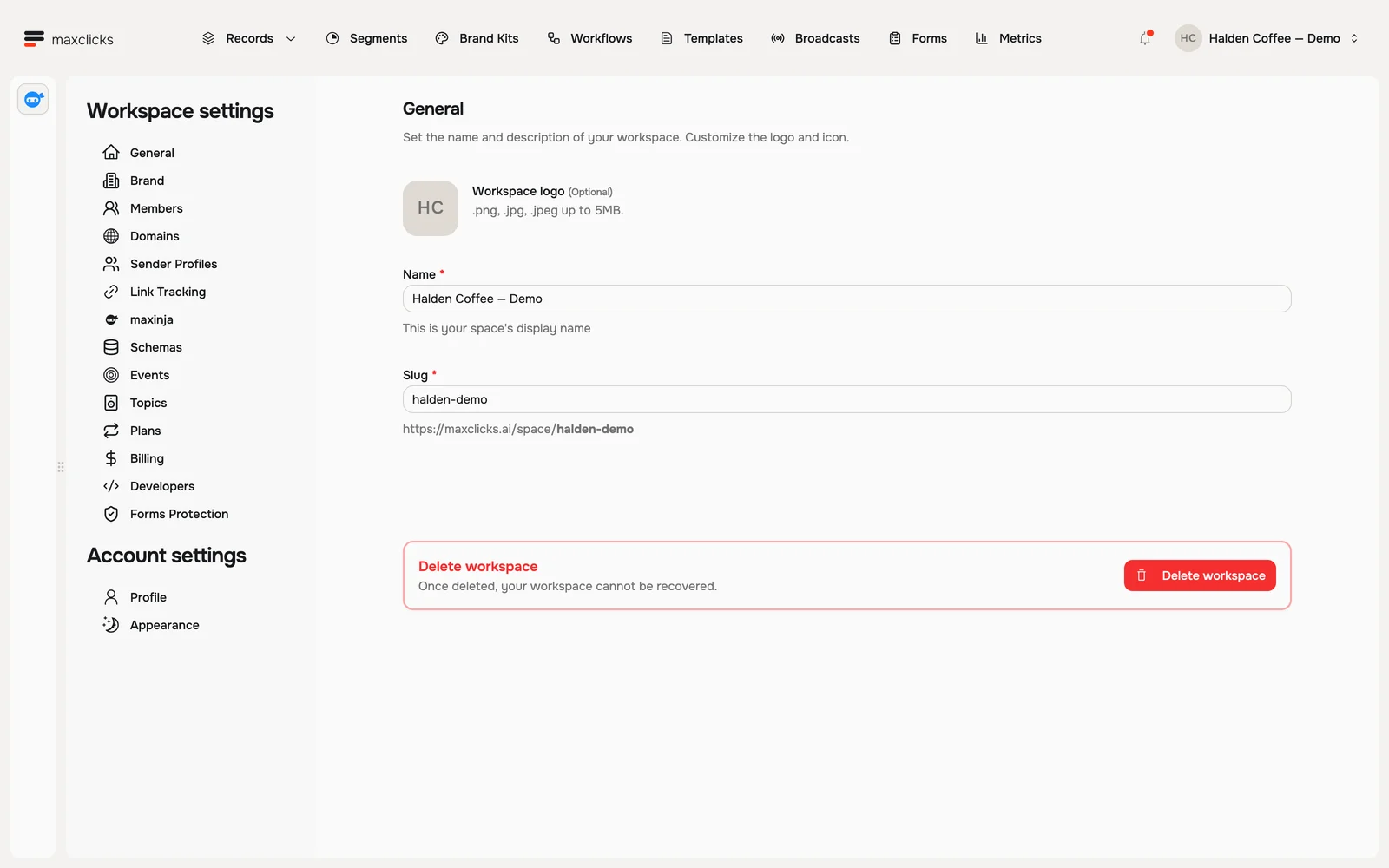
Halden demo · Workspace identity and its settings navigation.
To find something, ask maxinja: "Where do I add new contacts?" It points you to the right area, and it can build templates, broadcasts, and workflows for you.
Connect your systems
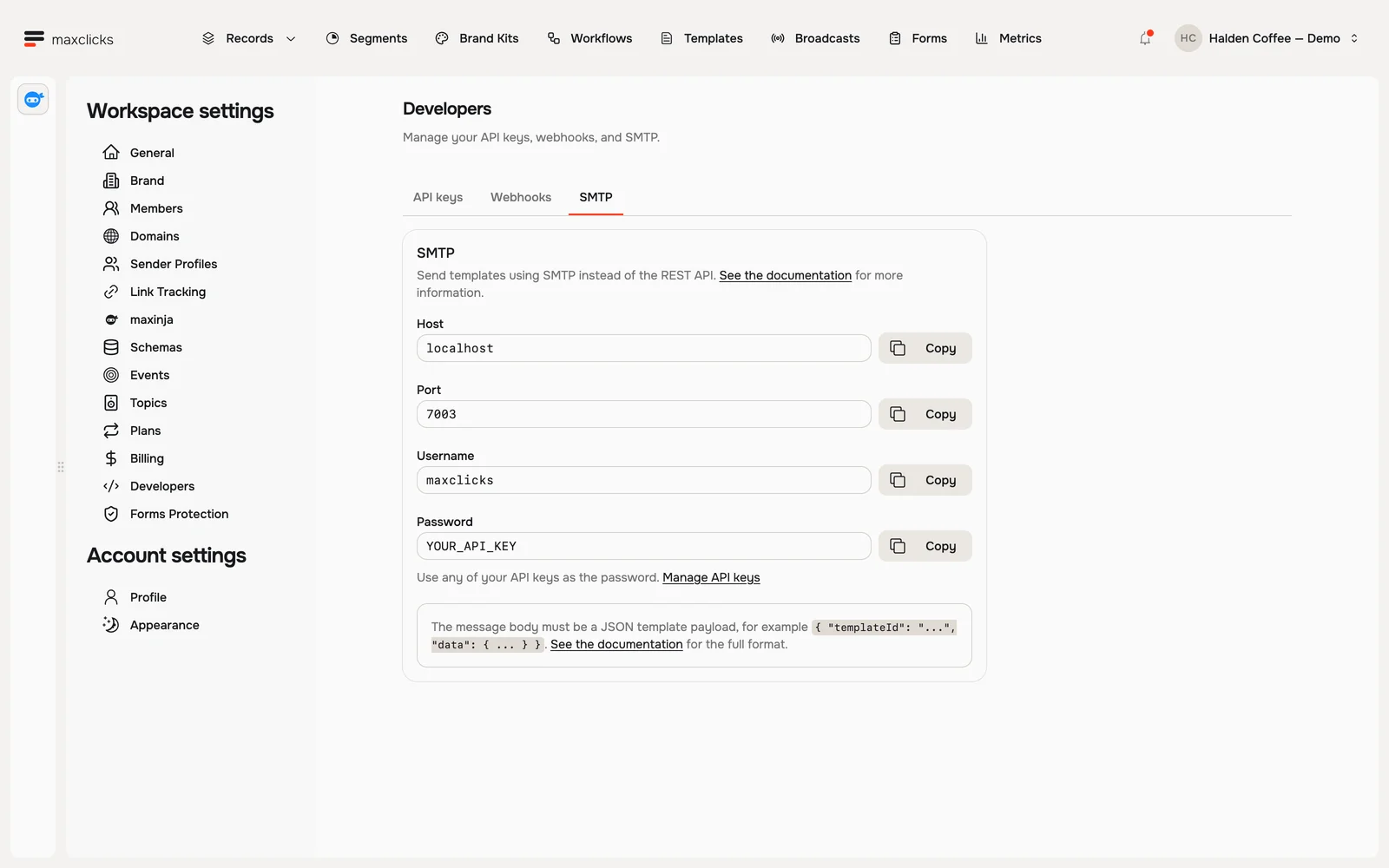
Open Settings → Developers for API keys, webhooks and SMTP. The walkthrough shows each tab, including the JSON template payload required for SMTP. Start with the connection details in your own workspace.
Walkthrough steps
Inspect SMTP settings and the JSON template payload requirement, then open the API keys and Webhooks tabs and return to SMTP. The workspace has no API keys or webhook endpoints. YOUR_API_KEY is the app’s placeholder, not a credential; no send or external connection is made.
Make the workspace comfortable
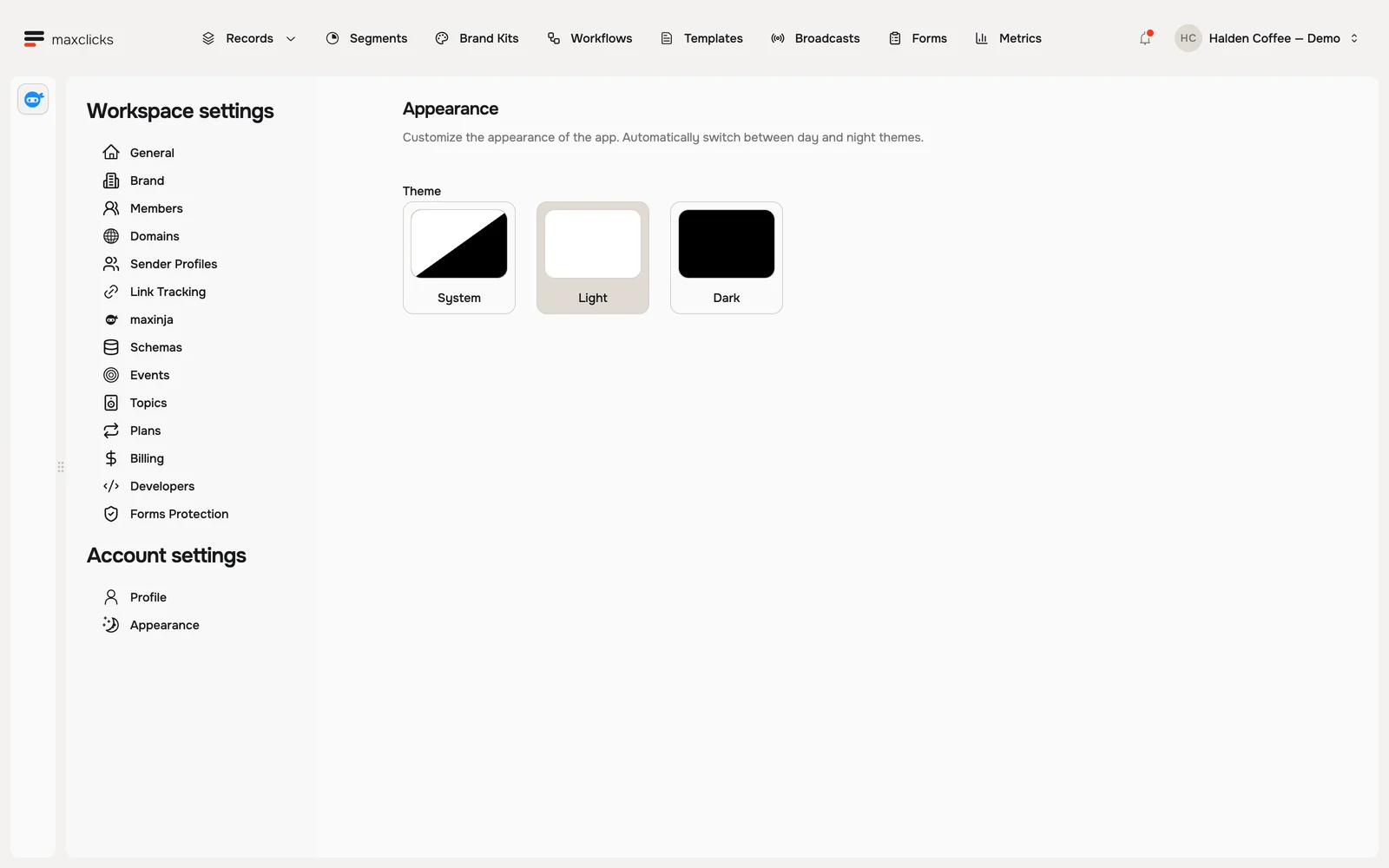
Under Account settings → Appearance, follow your system theme or choose Light or Dark. This preference changes the application interface, not your email’s brand palette.
Walkthrough steps
Open Appearance, switch to the other application theme and return to the starting theme. These are actual application theme changes, recorded separately from Light and Dark.
Next
Head to Add your contacts to bring your people into maxclicks.