Add your contacts
Give a campaign the customer details it needs, together with the preferences that determine whether you can send. This guide covers creating a contact, checking its fields and maintaining its communication preferences. For a full list, use CSV import.
Walkthrough steps
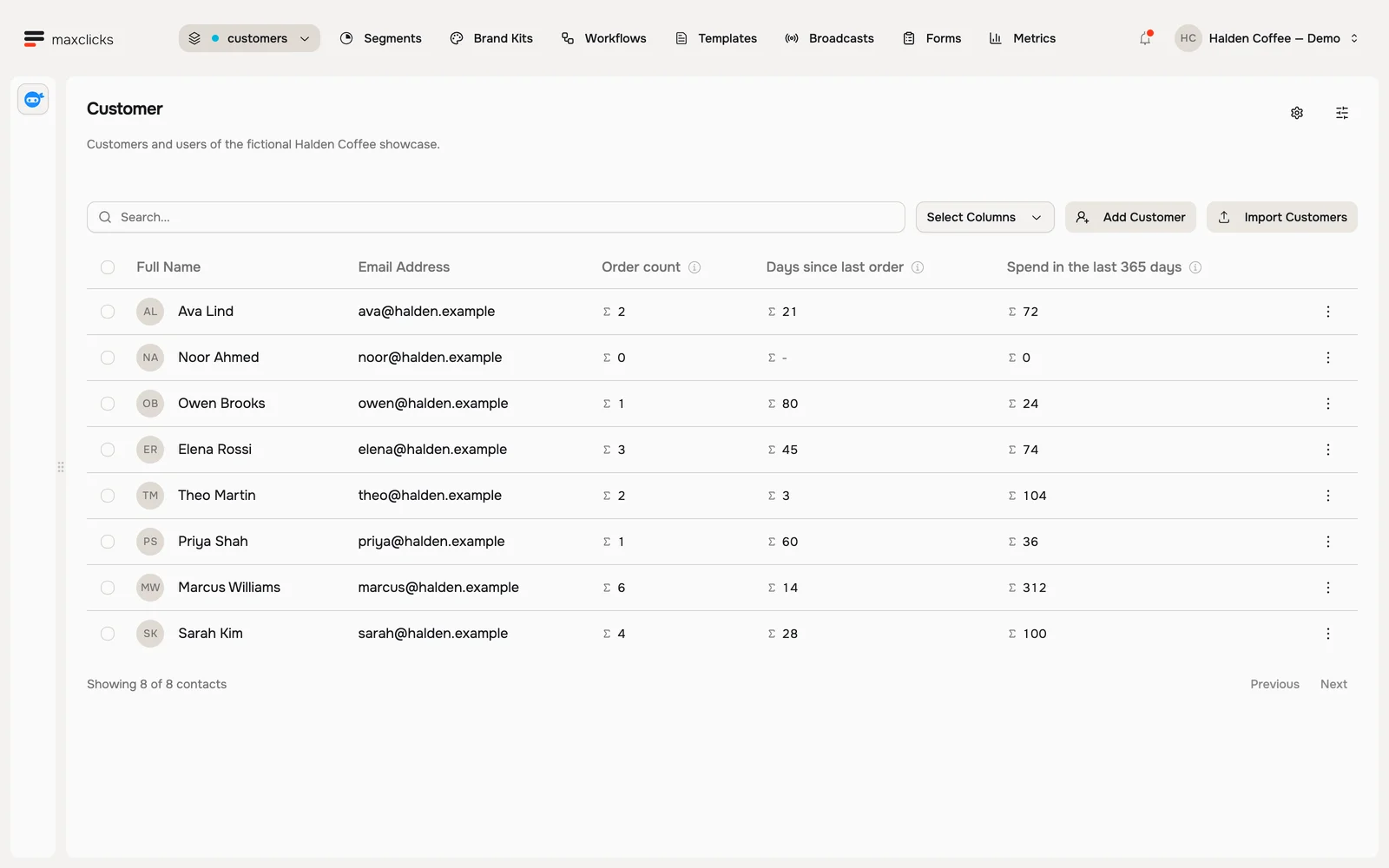
Inspect the eight fictional Halden customers and their computed order fields. Open Sarah’s order-count explanation, wait for the actual query to return four, then open her contact profile and preferences. No record is edited.
Open your contacts
In the top navigation, open Records and pick your contact type, for example Customers. That is the list of records in the selected schema; delivery eligibility is checked separately. In a new space it is empty.
Choose Add Customer to open a new customer form. This real table contains fictional local demo records. Walkthrough steps
Inspect the eight fictional Halden customers and their computed order fields. Open Sarah’s order-count explanation, wait for the actual query to return four, then open her contact profile and preferences. No record is edited.
Add a new contact
Click Add, followed by your contact type's name, for example Add Customer. If you have no contacts yet, the button on the empty page reads Create Customer instead. At a minimum, add the person's email address, since that is how you reach them. Add their first and last name too, so your emails can greet them properly.
Fill in more details
Add anything else you know: phone number, notes, and tags. Tags are short labels like "vip" or "newsletter" that you filter and group by later.
Set their email consent
Communication topics, at the top of the form, is the only consent control here, and it decides whether this person can be sent marketing email at all. Pick at least one topic and the contact is created subscribed to email. Leave it empty and the contact is created unsubscribed, so every marketing broadcast skips them.
Defaults vary by input path. The standard CSV importer also starts with default subscription turned off. The general record API can subscribe a newly created contact when
subscriptionsis omitted, so send an explicit empty list when that is intended. Review forms and workflow subscription settings separately.Create the contact
Click Create, followed by your contact type's name, for example Create Customer. The person appears in your contacts list right away. Matching uses the identifiers on the record. Inspect the saved contact and resolve any conflicting identifier reported by the app; see contact identity.
That update includes consent. Putting an existing subscriber through this form with no topic selected replaces their subscription with an empty one, and they stop receiving marketing email. To change details on someone you already have, open them from the list and edit there instead: the edit form does not touch subscriptions.
Edit a contact later
To change anything, open a contact from the list, update their details, and click Apply. Your edits take effect immediately.
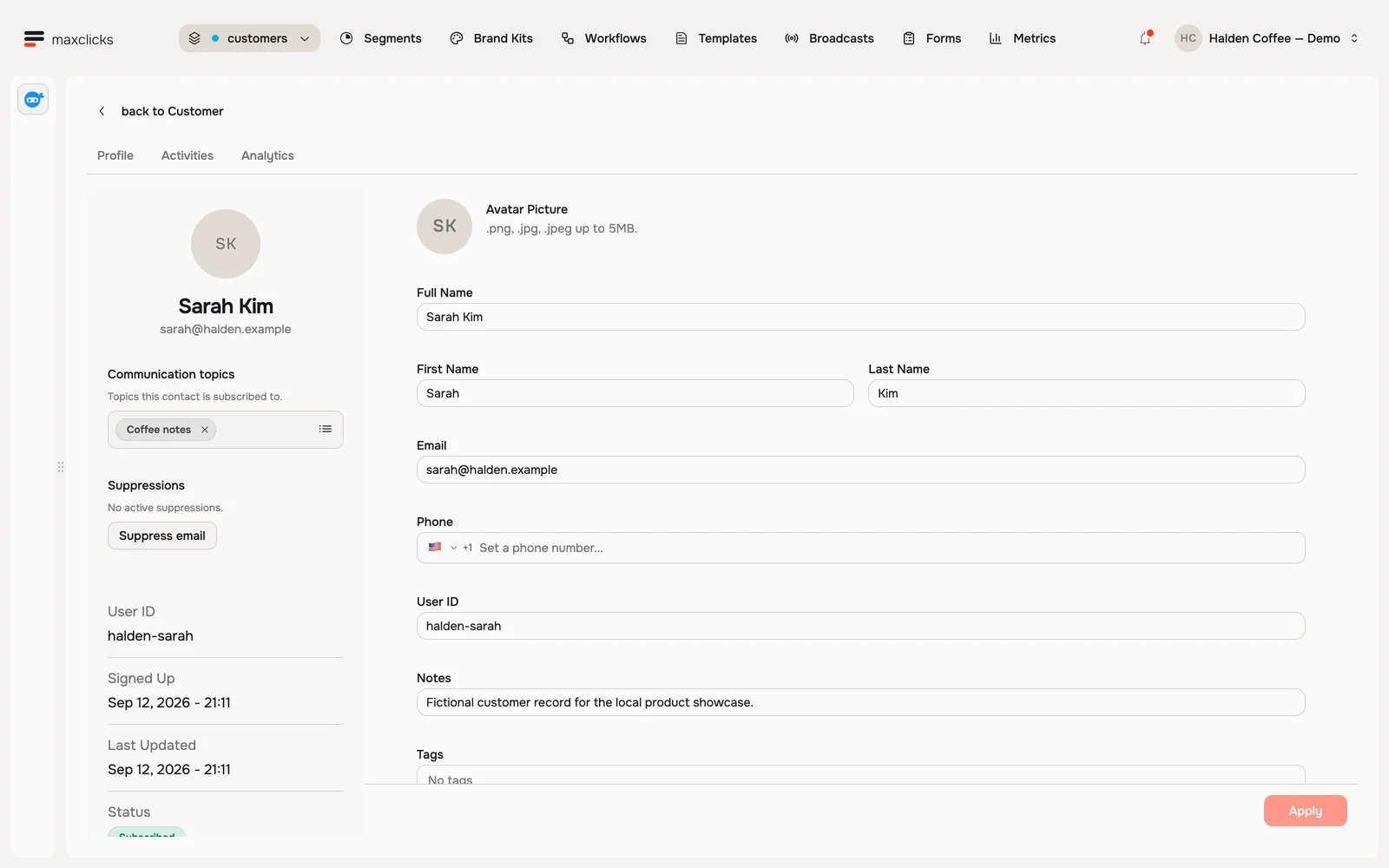
Halden demo · Sarah’s contact details, topic subscription and suppression controls.
Verify the profile before using it
Confirm the selected schema, stable User ID and intended email. Matching stays within a schema and gives User ID precedence over email. It does not merge separate profiles across schemas. Read any conflict rather than submitting the same person repeatedly with new identifiers.
Check the stored values that matter to your first audience. For evaluated fields, use Compute value on a real record; for a computed attribute, inspect its published Data through timestamp. A filled preview value does not prove that the source supplied every required fact or that a background calculation is current.
A note on permission
A marketing broadcast reaches only the contacts subscribed to email, and to its topic if it has one. Transactional email has different subscription checks but can still be blocked by bounce suppressions or fail delivery; it is not a guarantee that every address receives the message. Have permission before you add someone by hand.
If a contact unsubscribes later, maxclicks records it and stops sending them marketing email. You do not have to track that yourself.
To subscribe people you added without a topic, select them in the contacts list and click Subscribe.
Once your contacts are in, ask maxinja to put them to work. Try: "Write a welcome email to my new contacts." maxinja drafts the email and can pick who receives it.
Next
Learn how to build an audience by grouping contacts for a campaign.