Invite your team
Give campaign owners, operators and administrators the access their work requires. Workspace roles determine who can edit campaigns, manage members and control billing. This guide shows how to invite teammates and choose a role.
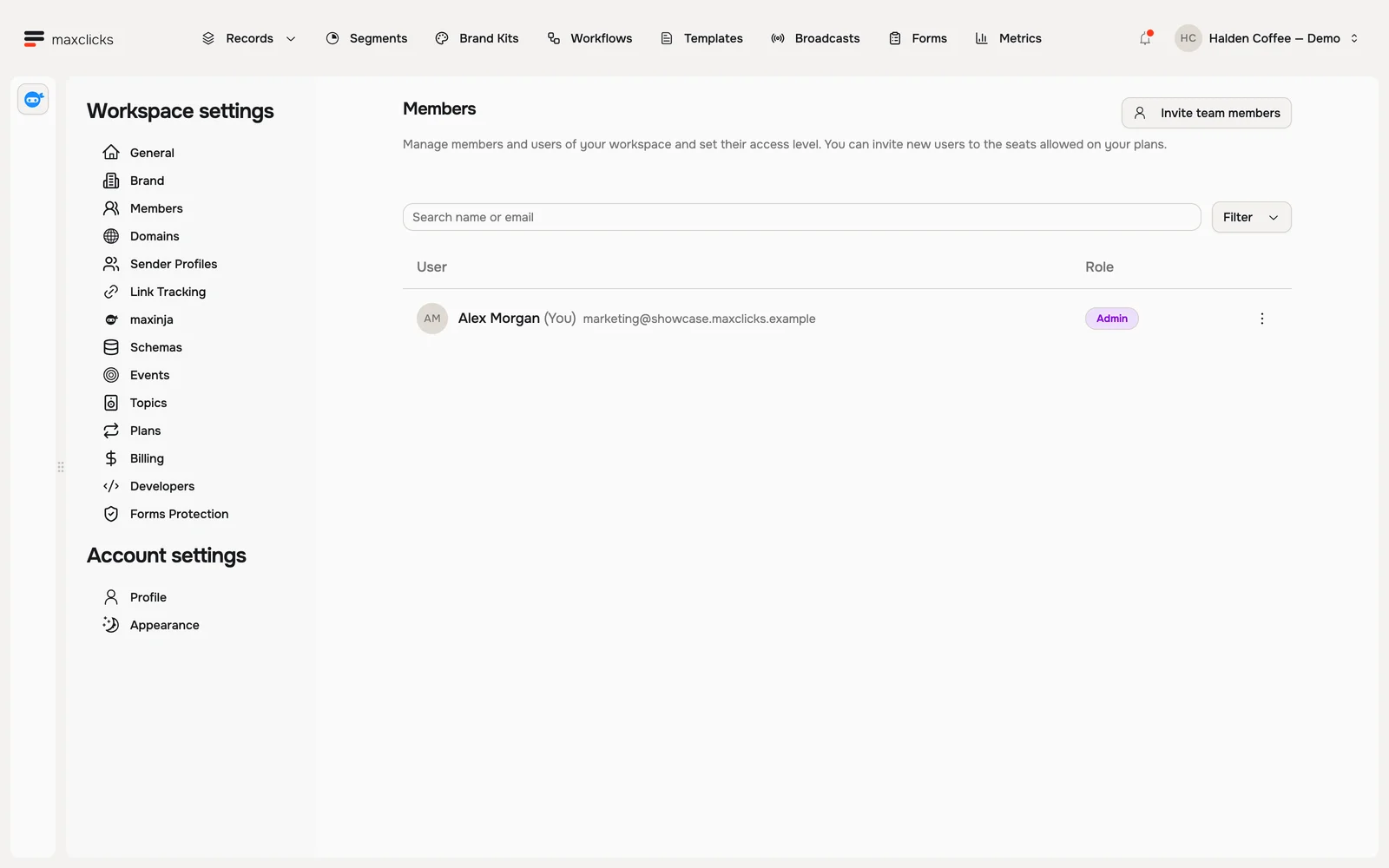
Open your members list
Open the space menu in the top bar and choose Members. You will see everyone who already has access.
Invite someone
Click Invite team members, then type their email addresses. You can paste several at once, separated by commas, spaces, or new lines.
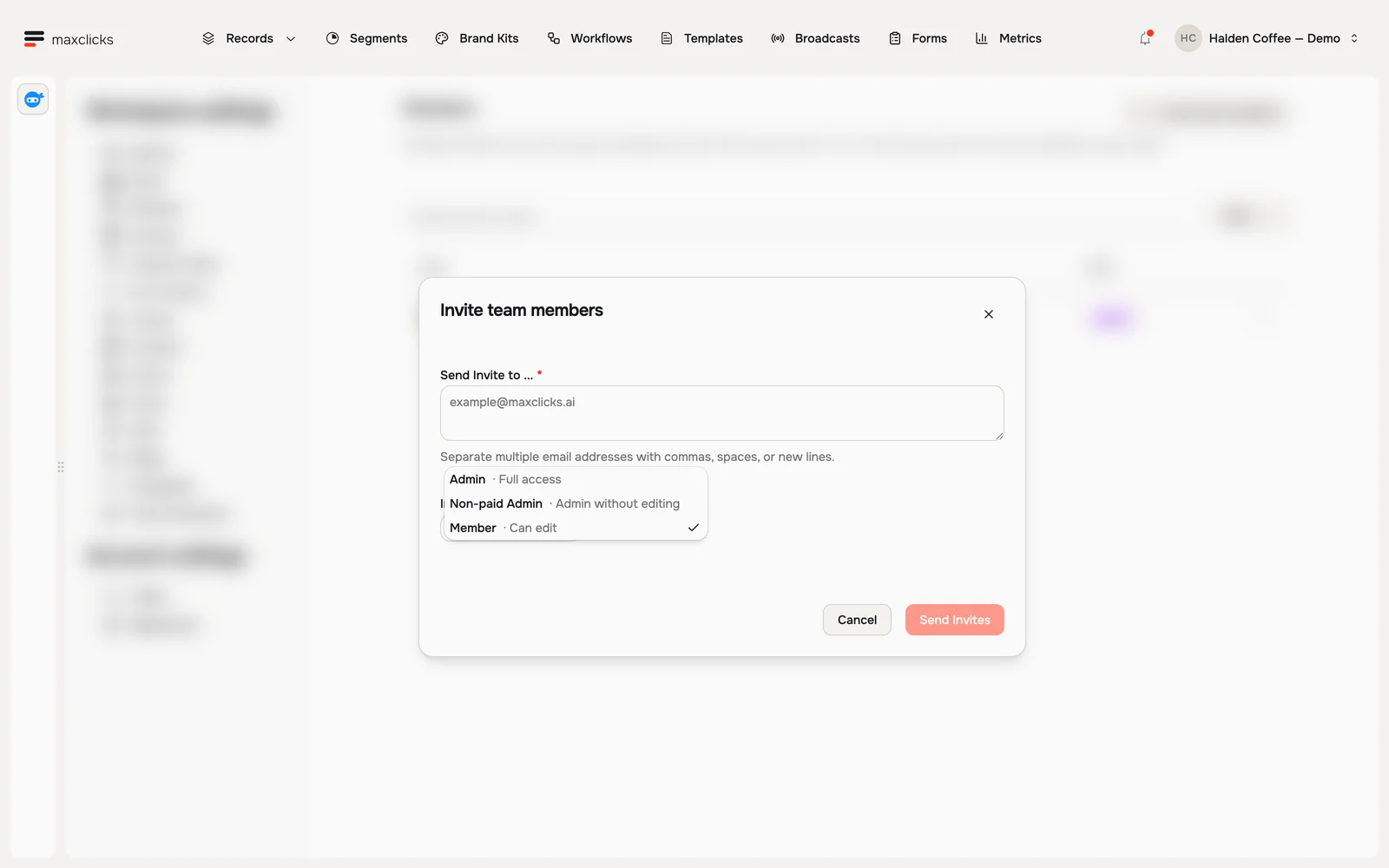
Halden demo · Choose an invitation role before sending. Walkthrough steps
Open Members, choose Invite team members and inspect the role choices. Admin, Non-paid Admin and Member have different access. No invitation is sent.
Choose what they can do
Pick a role in Invite as before you send:
- Member does the everyday work: add contacts, build audiences, design emails, send broadcasts, and set up workflows. On a paid plan a member takes a billed seat.
- Non-paid Admin runs the space, including members and billing, but cannot edit content or use maxinja chat, including questions intended to be read-only. This role never takes a billed seat.
- Admin has full access: everything a member can do, plus members, billing, and workspace settings. On a paid plan an admin takes a billed seat.
Give admin only to the people who need to run the space itself.
Send the invite
Send it. Anyone who already has a maxclicks account joins straight away, and everyone else gets an invitation email with a link that works for 14 days. You can change anyone's access or remove them from this same page later.
To settle who should get admin, ask maxinja: "What is the difference between the Admin, Non-paid Admin, and Member roles, and who should have each?" It explains it in plain terms for your team.
A few things to know
- You need admin access yourself to invite or remove people. A non-paid admin can only hand out the Non-paid Admin and Member roles.
- Invite people at their work email address. maxclicks does not accept accounts on personal providers like gmail.com or outlook.com, so an invite to one is refused when you send it.
- Removing someone takes away their access right away, but the work they already did stays in your space.
Finish the access review
Check the selected workspace and the new member's role after adding them. Existing account holders join immediately; a new user joins through the invitation. On Premium, editing membership creates a paid seat. Annual additions are prorated through the current term, while reductions apply at renewal.
You cannot change your own role or remove yourself here, and the workspace must retain an admin. A Non-paid Admin cannot promote, change or remove a full Admin. See members for the role and API-key rules.
Related
Now that your team is in, help them find their way around in Take a tour.